Running Consultations in a Single Sentence
Once the connection is done, simply instruct the AI (ChatGPT or Claude) the way you normally talk. The AI uses the TalkBridge tools on its own to get things done, and tells you what to do next as well.
Try following the example sentences below as they are.
1. Connecting a channel (once, at the start)
This is the process of connecting a Kakao SangdamTalk (Kakao's customer-consultation chat) channel. The AI guides you step by step, so just follow along.
First, ask about the current status.
"Tell me how far my channel connection has progressed"
The AI then tells you something like: "Step 1/4 — Channel verification is required. Shall we proceed with channel verification next?"
Then follow the guidance to continue.
| Step | Say this | Information needed |
|---|---|---|
| ① Add channel | "Add my Kakao channel" | Channel display name, Kakao channel search ID (the value after @) |
| ② Verify channel | "Proceed with channel verification" | The channel admin's mobile phone number → the verification code received via KakaoTalk, business category code |
| ③ Activate SangdamTalk | "Activate SangdamTalk" | (automatic) |
| ④ Connect inbound | "Finish setting up the inbound consultation connection" | The address that will receive consultations (if you have one) |
After each step, ask "Tell me the current status" again and the progress rises (1/4 → 4/4). Once it reaches 4/4 "Connected", you can send and receive consultations.
Channel verification requires the Kakao admin's information. If you have already connected the channel in TalkBridge Center, skip this step and go straight to running consultations.
2. Viewing consultations
Check the consultations currently going on in a connected channel.
"Show me the customers currently in consultation"
A list of customers and their last messages appears. To see a specific customer's conversation:
"Show me in detail what that customer just said"
3. Responding to consultations
Send a reply to the customer.
"Send that customer a reply saying 'Hello! I'll check right away and help you'"
You can also wrap up a consultation or block a problematic customer.
"End this consultation. Send a closing message saying 'Thank you for using our service' at the end" "Block this customer"
4. ✨ Use it as your own AI consultation supporter
This is the key part. Combine the AI's comprehension with TalkBridge's sending, and you can respond even without consultation expertise.
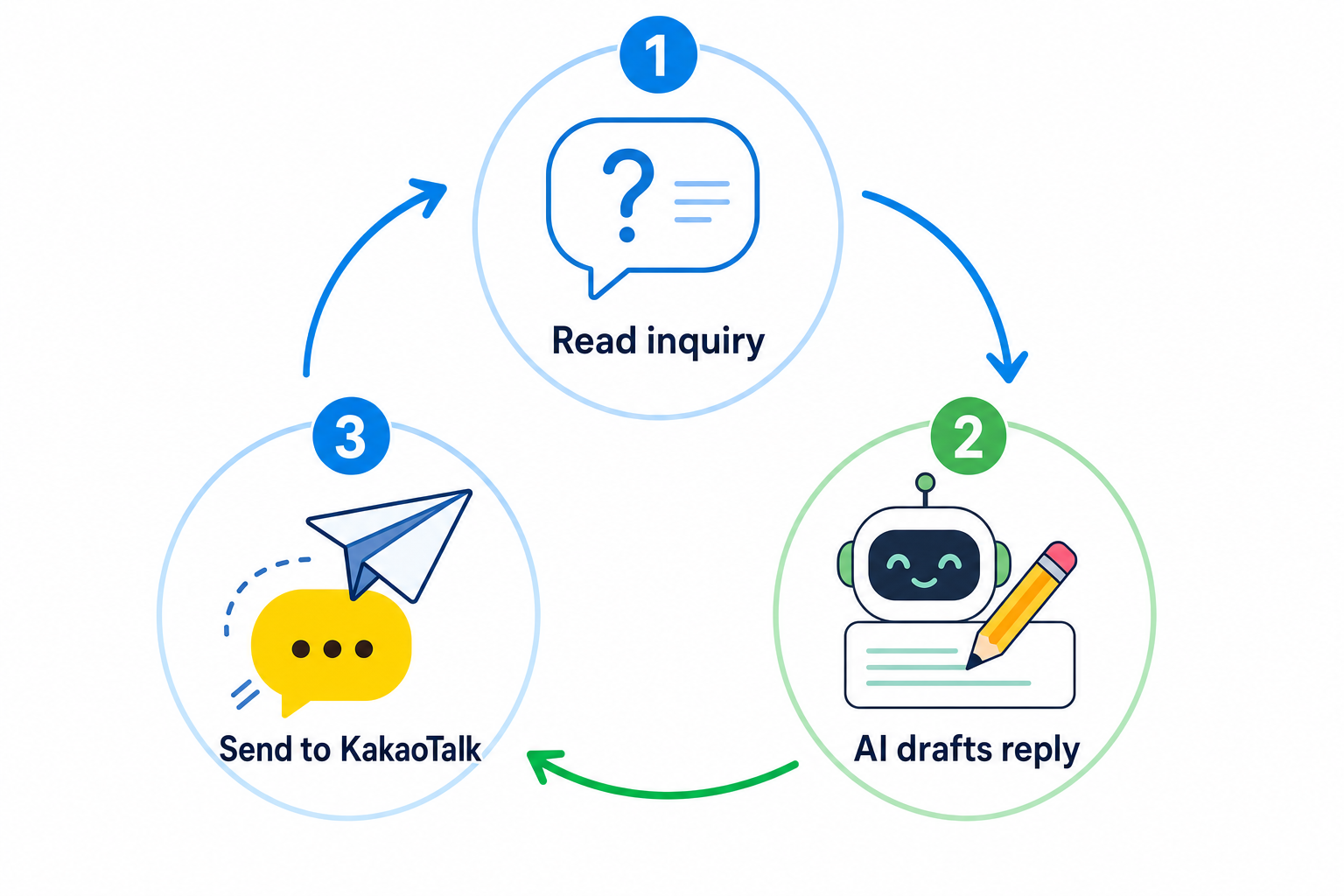
Example — understand the customer's inquiry and produce the answer in one go:
"Look at the inquiry from the customer in consultation, write a polite and friendly reply, and send it as is. If it's about a refund, include a note that it takes 3–5 business days."
The AI:
- Looks up the customer's recent messages,
- Understands the inquiry and writes a reply following your instructions ("politely, include refund guidance"), then
- Sends it right away via Kakao.
You only set the direction, and the AI takes on the role of a consultation agent in your style and responds. If you set out the tone and rules in advance ("always use formal language", "do not quote prices", etc.), it follows them.
Frequently asked
- I have multiple brands — Mention the brand along with the request, like "Show me consultations for brand ○○". If unsure, ask "Tell me my list of brands".
- Which customer to send to — First check with "Show me the customers in consultation", then continue with "Send that customer…" and the AI carries over the target.
- My reply didn't go through — Kakao consultations can only be sent to an in-progress (active) session. For a customer whose session has ended, a reply can only be sent once a new inquiry arrives.
- Can I do this with the CLI? — If you're a developer, the same is possible with the CLI. This guide covers using an AI app without coding.